Give the gameplay room
Speak and your camera appears. During cutscenes or quiet concentration, it fades away after your chosen silence delay.
Your microphoneYour webcam
 DRIFTER RELAY
PUBLIC STREAM TOOL / VERSION 4.1
Let your overlays step in when they have something to say—and fade away when they don’t.
Audio Fade links an OBS audio input to the visual sources you choose. Each link listens independently, with its own threshold and silence timer.
Download Audio Fade HTMLSet up your OBS dockExample signals. Every link has its own input.
THREE WAYS DRIFTER USES IT
These are starting points. Link any OBS audio input to your chosen webcam, image, text, browser source, or other scene item.
Speak and your camera appears. During cutscenes or quiet concentration, it fades away after your chosen silence delay.
Show your friends’ images while their Discord audio is active; hide them when the conversation goes quiet. A combined Discord capture reacts to anyone on that capture.
Keep an existing now-playing source visible while music is audible, then hide it when the music stops. Audio Fade controls visibility; your music tool supplies the track information.
DRIFTER’S CURRENT SETUP
| Audio input | Visual targets | Threshold | Silence | Activation |
|---|---|---|---|---|
| Microphone | Webcam in the stream scene | −35 dB | 6 seconds | 450 ms |
| Discord | Reactive images in the stream scene | −35 dB | 3 seconds | 450 ms |
| Music / browser input | Now-playing text in Stream, Starting, BRB, End Stream, and Chatting | −50 dB | 1 second | 120 ms |
Each input controls only its assigned visuals. One input can control sources across several scenes. These settings are examples from Drifter’s dock; tune them to your own audio levels.
FROM THE STREAMING DESK
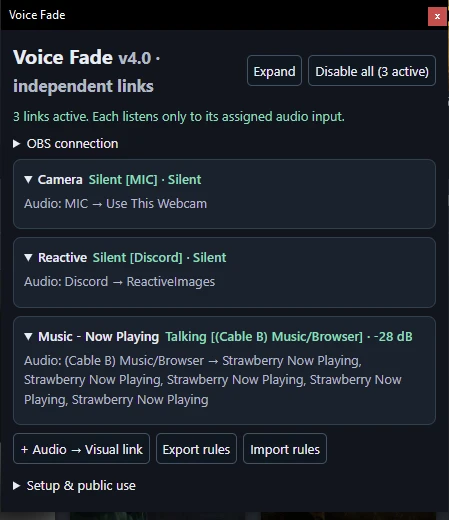
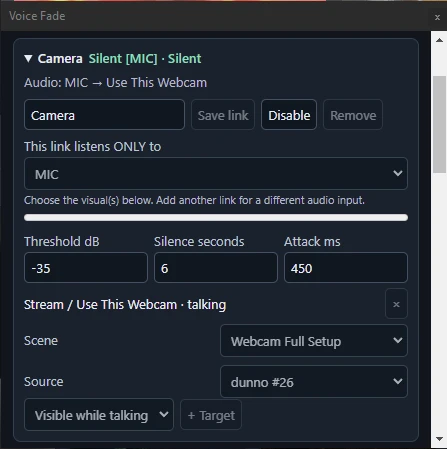
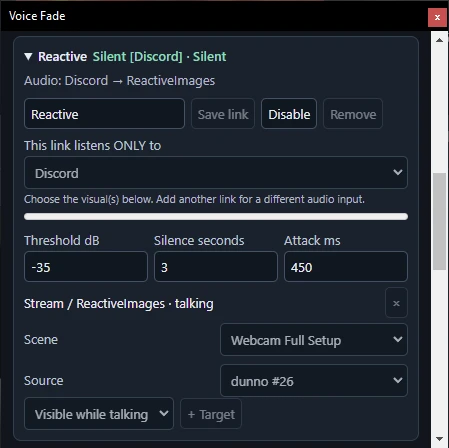
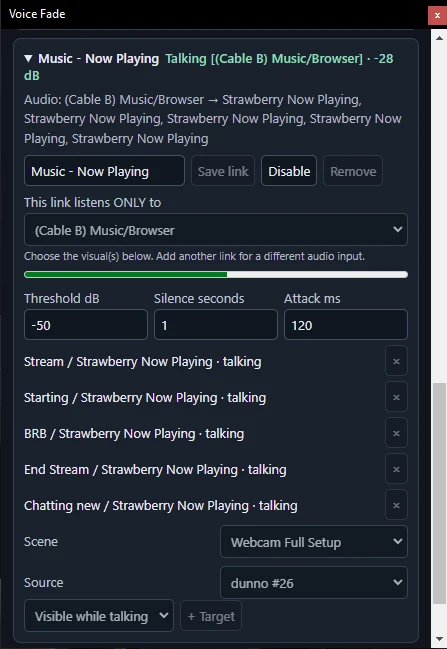
Choose the volume that triggers a source, how long sound must last before it appears, and how long silence lasts before it hides.
QUICK SETUP
Download Audio-Fade.html to your streaming PC. Keep the file in place after adding the dock.
Open the file in your browser and copy its file address. In OBS, go to Docks → Custom Browser Docks. Name it Audio Fade, paste that address, and click Apply.
In Tools → WebSocket Server Settings, enable the server. Use Show Connect Info to find the port and password, then enter them in the dock’s OBS connection section.
Choose one audio input per link, add its visual targets in the appropriate scene, and enable the links. Try −35 dB and 6 seconds of silence for commentary; use a shorter delay for reactive images.
Right-click each target in OBS Sources. Set Show Transition → Fade and Hide Transition → Fade. Start with 250 ms in and 700 ms out, then adjust to taste.
This reacts to volume, not speech or speaker identity. Use isolated audio inputs so a mixed desktop bus doesn’t trigger unrelated visuals. Separate guest reactions need separate guest audio inputs.
Keep your always-visible sources outside the links. Settings save locally when dock storage is available; Export rules provides a copy/paste backup. Passwords are not saved. Links stay enabled through scene changes: when an input disappears, its link waits and resumes automatically when audio meter data returns. Disable the links before closing to restore their original visibility.
Version 4.1 has passed simulated selection, persistence, and independent-trigger tests. Test the dock with your OBS setup before relying on it live.